For those of you who are interested in monitoring Hyper-V Performance, this article explains it!!
http://blogs.msdn.com/tvoellm/archive/2009/04/23/monitoring-hyper-v-performance.aspx
Thursday, July 9, 2009


Monday, June 29, 2009
Installing Hyper-V Server 2008
A friend asked me how difficult is it to setup Hyper-V Server 2008 for his IT-Lab. My answer to him is "It is very simple. Just go ahead and do it!". Hyper-V Server 2008 is free!!
Below are all the information that I fed him and these are enough for him to proudly setup his first Hyper-V Server 2008.
Good Web Resources:
1. Microsoft Hyper-V Server Home Page
2. Download your Hyper-V Server ISO
3. Microsoft Assessment and Planning Toolkit to help you assess your current IT infrastructure.
4. Window Server Virtualization Guide for your reading and knowledge, to help in your planning and deployment.
5. Hyper-V Server Configuration Tool Guide
Installation:
Installation is very simple. Burn the ISO into a DVD and boots your machine with your DVD.
1. The first screen that greets you is to ask you to select a Language.
2. Then select the "Language to install", "Time and currency format", and "Keyboard or input method".
3. Click on Install Now to start installing.
4. Accept the license agreement
5. Select Custom (advanced)
6. Select which Disk and Partition to install Hyper-V. Click Next and installation begins.
Configuring Hyper-V Server 2008:
1. First thing that you need here is the Administrator's password to login to your newly installed Hyper-V Server. Enter Administrator and an empty password to login. You will be prompted to create a new password.
2. You will not get your desktop on Hyper-V Server 2008, you will be given a menu driven User Interface tool known as Hyper-V Configuration Tools. If you need to start the tools at any time run hyconfig.cmd.
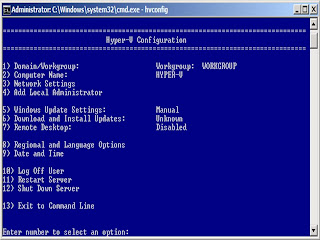
3. I think the configuration tools menu is self explanatory. I will leave it to you to set your computer name (2), Join Domain/workgroup (1), configure your network settings(3).
4. Finally, you can manage this Hyper-V Server 2008 machine remotely using the following methods:
Below are all the information that I fed him and these are enough for him to proudly setup his first Hyper-V Server 2008.
Good Web Resources:
1. Microsoft Hyper-V Server Home Page
2. Download your Hyper-V Server ISO
3. Microsoft Assessment and Planning Toolkit to help you assess your current IT infrastructure.
4. Window Server Virtualization Guide for your reading and knowledge, to help in your planning and deployment.
5. Hyper-V Server Configuration Tool Guide
Installation:
Installation is very simple. Burn the ISO into a DVD and boots your machine with your DVD.
1. The first screen that greets you is to ask you to select a Language.
2. Then select the "Language to install", "Time and currency format", and "Keyboard or input method".
3. Click on Install Now to start installing.
4. Accept the license agreement
5. Select Custom (advanced)
6. Select which Disk and Partition to install Hyper-V. Click Next and installation begins.
Configuring Hyper-V Server 2008:
1. First thing that you need here is the Administrator's password to login to your newly installed Hyper-V Server. Enter Administrator and an empty password to login. You will be prompted to create a new password.
2. You will not get your desktop on Hyper-V Server 2008, you will be given a menu driven User Interface tool known as Hyper-V Configuration Tools. If you need to start the tools at any time run hyconfig.cmd.

3. I think the configuration tools menu is self explanatory. I will leave it to you to set your computer name (2), Join Domain/workgroup (1), configure your network settings(3).
4. Finally, you can manage this Hyper-V Server 2008 machine remotely using the following methods:
- Microsoft® Windows Server 2008 (a full installation) with the Hyper-V Manager
- Microsoft® Windows® Vista SP1 with the Hyper-V Manager
- Microsoft® System Center Virtual Machine Manager 2008
5. Have fun!!!
Monday, June 15, 2009
Introduction to Active Directory
This is video recording of a training session on Introduction to Active Directory that I conducted on 10 Jun 2009. Click here to view the video.
Abstract and Topics are:
Active Directory Domain Services (AD DS), formerly known as Active Directory Directory Services, is the central location for configuration information, authentication requests, and information about all of the objects that are stored within your forest. Using Active Directory, you can efficiently manage users, computers, groups, printers, applications, and other directory-enabled objects from one secure, centralized location. Let's explore further with the following
Topics:
What is AD?
Server Roles
Deployment Considerations
Designing a Forest infra
Designing a Domain Infra
Setting up AD
Tools to administer AD
Abstract and Topics are:
Active Directory Domain Services (AD DS), formerly known as Active Directory Directory Services, is the central location for configuration information, authentication requests, and information about all of the objects that are stored within your forest. Using Active Directory, you can efficiently manage users, computers, groups, printers, applications, and other directory-enabled objects from one secure, centralized location. Let's explore further with the following
Topics:
What is AD?
Server Roles
Deployment Considerations
Designing a Forest infra
Designing a Domain Infra
Setting up AD
Tools to administer AD
Friday, May 29, 2009
Deploying Windows XP with Microsoft Deployment WorkBench
Deploying Windows XP with Microsoft Deployment Workbench
I hope this pictorial can guide you through the process of using Microsoft Deployment WorkBench (Previously known as BDD) to deploy Windows XP. I will be uploading another post to use Windows Deployment Services in Windows Server 2008 together with this deployment workbench to deploy Windows XP, Vista, 2008. Stay tuned!
I hope this pictorial can guide you through the process of using Microsoft Deployment WorkBench (Previously known as BDD) to deploy Windows XP. I will be uploading another post to use Windows Deployment Services in Windows Server 2008 together with this deployment workbench to deploy Windows XP, Vista, 2008. Stay tuned!
- Download Microsoft Deployment Workbench from the link before and install it onto a 32bit version of Windows 2003 SP2 machine.
http://www.microsoft.com/downloads/details.aspx?FamilyId=3BD8561F-77AC-4400-A0C1-FE871C461A89&displaylang=en - After you have installed Microsoft Deployment Workbench, expand Information Center and select Components. Select Windows Automated Installation Kit from the component list. Then click on Download button on the Details pane.

- Install Windows Automated Installation Kit when the download completes.

- Proceed to create distribution share directory after AIK installation. Note: Do not create on System Drive if possible.
- Create the Distribution directory on a separate drive.
- Now let’s add Windows XP source files. Be sure to add the latest releases.
- Let’s add Applications such as Microsoft Office, Adobe Reader, etc to be installed during Windows XP deployment.
- Steps 8 – 11 demonstrates adding Adobe Reader 9 to your deployment.
- Locate the source files for the Application.
- Create a friendly name to easily identify the application.
- Enter the command line to install the application in silent mode.

- Next, we need to create a Task Sequence for the Windows XP Installation.
Steps 12-17 guide you through creating a Task Sequence for installing Windows XP on your client computer.
Create a task sequence for your installation and give it a identity. - Select Standard Client Task Sequence.
- Full in the OS setting information.
- Select the Windows XP source files that you uploaded earlier.
- Key in the Product Key.

- Key in the local administrator password and click Finish.

- Finally, we need to create a Deployment Point for the Task Sequence.
Select Lab or Single-server deployment.
- Give it a Deployment point name.

- Allow users to select additional applications on Upgrade.

- Do not Ask if an imagine should be captured.

- Do not Ask user to set the local Administrator Password.

- Do not Ask user for a product key.

- Click next to create the network share.

- Do not save data and settings.

- The whole sequence will be completed once the Update completes.


Wednesday, April 15, 2009
Exchange 2010 Beta is available now
The public beta of Microsoft Exchange Server 2010, part of Microsoft's unified communications family, is now available. Exchange 2010 is the first server in a new generation of Microsoft server technology designed and developed to work on-premises and as an online service, and introduces a new integrated e-mail archive and features to reduce costs and improve the user experience.
Exchange 2010 Product Home Page
- http://www.microsoft.com/exchange/2010/en/us/default.aspx
Exchange 2010 on TechCenter
- http://technet.microsoft.com/en-us/exchange/2010/default.aspx
Exchange 2010 Product Home Page
- http://www.microsoft.com/exchange/2010/en/us/default.aspx
Exchange 2010 on TechCenter
- http://technet.microsoft.com/en-us/exchange/2010/default.aspx
Monday, April 13, 2009
Hyper-V Security Guide
This is a new solution accelerator from Microsoft, good for those of you Hyper-V users. Check it out!!
This guide is designed to provide you with guidance, instructions, and recommendations to help you elevate the security of virtualized Microsoft® Windows Server® 2008 environments to address your business-critical needs.
The Hyper-V Security Guide focuses on three key areas and provides the following information:
• Hardening the Hyper-V role. Prescriptive guidance for hardening the Hyper-V role, including several best practices for installing and configuring Hyper-V with a focus on security. These best practices include measures for reducing the attack surface of Hyper-V as well as recommendations for properly configuring secure virtual networks and storage devices. • Delegating virtual machine management. Prescriptive guidance to help you safely and securely delegate administrative access to virtual machine resources within an organization. • Protecting virtual machines. Prescriptive guidance for securing virtual machine resources, including best practices and detailed steps for protecting virtual machines by using a combination of file system permissions, encryption, and auditing.
http://www.microsoft.com/downloads/details.aspx?FamilyID=2220624b-a562-4e79-aa69-a7b3dffdd090&displaylang=en
This guide is designed to provide you with guidance, instructions, and recommendations to help you elevate the security of virtualized Microsoft® Windows Server® 2008 environments to address your business-critical needs.
The Hyper-V Security Guide focuses on three key areas and provides the following information:
• Hardening the Hyper-V role. Prescriptive guidance for hardening the Hyper-V role, including several best practices for installing and configuring Hyper-V with a focus on security. These best practices include measures for reducing the attack surface of Hyper-V as well as recommendations for properly configuring secure virtual networks and storage devices. • Delegating virtual machine management. Prescriptive guidance to help you safely and securely delegate administrative access to virtual machine resources within an organization. • Protecting virtual machines. Prescriptive guidance for securing virtual machine resources, including best practices and detailed steps for protecting virtual machines by using a combination of file system permissions, encryption, and auditing.
http://www.microsoft.com/downloads/details.aspx?FamilyID=2220624b-a562-4e79-aa69-a7b3dffdd090&displaylang=en
Friday, April 10, 2009
Deploy Office 2007 Compatibility Pack via Group Policy
For those of you whom supports both Office 2003 and Office 2007, you will frequently be getting calls from users that they have problem opening Office 2007 files. Microsoft releases FileFormatConverters.exe to allow Office 2003 users to open Office 2007 files. http://www.microsoft.com/downloads/details.aspx?FamilyID=941b3470-3ae9-4aee-8f43-c6bb74cd1466&displaylang=en
Let me share with you how to deploy Office 2007 CompatibilityPack to your Office 2003 users via GPO.
First, download fileformatconverters.exe using the link above.
Save the fileformatconverters.exe to a folder, example, C:\office2007convert.
Open command prompt, and execute the command to extract the files.
C:\office2007convert\fileformatconverters.exe /extract:c:\office2007convert\
Copy the files O12Conv.CAB and O12Conv.MSI to a shared folder on your server where you users have read access.
Now, let's create a Group Policy to deploy Office 2007 Compatibility Pack to your users.
Open Group Policy Management Console and create a new policy. Let's call it DeployOffice2007CompatPack.
Expand out the Computers Configuration and select the Software Settings > Software Installation.
Right-click in the right hand pane and select New > Package.
Browse to the package on the file share you are going to use and select the O12Conv.MSI file and choose OPEN.
When prompted choose Assigned (you can also choose Publish but this Publish option will not automatically install the software for your users - it will just make the package available for them to install).
Once you have pressed OK you will find the package in your GPO.
Link this DeployOffice2007CompatPack to your OU where your computers reside and we are done.
Deploying Software via Group Policy is a efficent way to install software to your domain computers.
Let me share with you how to deploy Office 2007 CompatibilityPack to your Office 2003 users via GPO.
First, download fileformatconverters.exe using the link above.
Save the fileformatconverters.exe to a folder, example, C:\office2007convert.
Open command prompt, and execute the command to extract the files.
C:\office2007convert\fileformatconverters.exe /extract:c:\office2007convert\
Copy the files O12Conv.CAB and O12Conv.MSI to a shared folder on your server where you users have read access.
Now, let's create a Group Policy to deploy Office 2007 Compatibility Pack to your users.
Open Group Policy Management Console and create a new policy. Let's call it DeployOffice2007CompatPack.
Expand out the Computers Configuration and select the Software Settings > Software Installation.
Right-click in the right hand pane and select New > Package.
Browse to the package on the file share you are going to use and select the O12Conv.MSI file and choose OPEN.
When prompted choose Assigned (you can also choose Publish but this Publish option will not automatically install the software for your users - it will just make the package available for them to install).
Once you have pressed OK you will find the package in your GPO.
Link this DeployOffice2007CompatPack to your OU where your computers reside and we are done.
Deploying Software via Group Policy is a efficent way to install software to your domain computers.
Subscribe to:
Posts (Atom)




 Posts
Posts

