A friend asked me how difficult is it to setup Hyper-V Server 2008 for his IT-Lab. My answer to him is "It is very simple. Just go ahead and do it!". Hyper-V Server 2008 is free!!
Below are all the information that I fed him and these are enough for him to proudly setup his first Hyper-V Server 2008.
Good Web Resources:
1.
Microsoft Hyper-V Server Home Page2.
Download your Hyper-V Server ISO3.
Microsoft Assessment and Planning Toolkit to help you assess your current IT infrastructure.
4.
Window Server Virtualization Guide for your reading and knowledge, to help in your planning and deployment.
5.
Hyper-V Server Configuration Tool GuideInstallation:
Installation is very simple. Burn the ISO into a DVD and boots your machine with your DVD.
1. The first screen that greets you is to ask you to select a Language.
2. Then select the "Language to install", "Time and currency format", and "Keyboard or input method".
3. Click on Install Now to start installing.
4. Accept the license agreement
5. Select Custom (advanced)
6. Select which Disk and Partition to install Hyper-V. Click Next and installation begins.
Configuring Hyper-V Server 2008:
1. First thing that you need here is the Administrator's password to login to your newly installed Hyper-V Server. Enter Administrator and an empty password to login. You will be prompted to create a new password.
2. You will not get your desktop on Hyper-V Server 2008, you will be given a menu driven User Interface tool known as Hyper-V Configuration Tools. If you need to start the tools at any time run hyconfig.cmd.
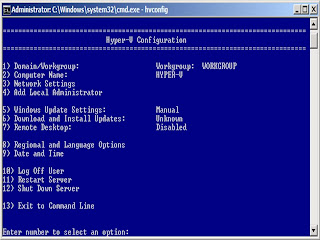
3. I think the configuration tools menu is self explanatory. I will leave it to you to set your computer name (2), Join Domain/workgroup (1), configure your network settings(3).
4. Finally, you can manage this Hyper-V Server 2008 machine remotely using the following methods:
- Microsoft® Windows Server 2008 (a full installation) with the Hyper-V Manager
- Microsoft® Windows® Vista SP1 with the Hyper-V Manager
- Microsoft® System Center Virtual Machine Manager 2008
5. Have fun!!!




 Posts
Posts

